

You just got your hands on a new iPad and can’t wait to unlock everything it can do, right? That's why many users search for a complete iPad guide in Bangladesh that they can easily understand and follow. This complete step-by-step tutorial for beginners like you will walk you through it all, right from the start. If you want to use your iPad Mini, Air, or PRO effectively with 2026’s all the latest iPadOS 26 features, you are surely going to need this user guide by your side. Starting from turning on the iPad, our guide will show you how its gestures work and how multitasking fits into your daily routine.
Table of Contents
- Getting Started: How to Set Up Your iPad
- Exciting Features of iPad Every User Should Know
- Essential iPad Tips to Get The Most Out of Your Device
- Common iPad Problems & How to Fix Them (Basic iPad Troubleshooting)
- Ready to Get Started?
So, as you can see, today’s blog covers setting up your iPad, defining its features, sharing tips, and troubleshooting as well. At the end of this guide, you will be able to handle any issue that comes your way at the initial stage. Up next, you'll learn how to set up your iPad for the first time, and later we will discuss its features and basic troubleshooting.
Tip: Before you start using your iPad, do apply a tempered glass protector to keep the screen safe from day one.
Getting Started: How to Set Up Your iPad
Here are the things you are going to face just after unboxing your device. This primary section will walk you through how to set up an iPad for the first time, step by step. By the end, you'll feel confident using every part of your new device.
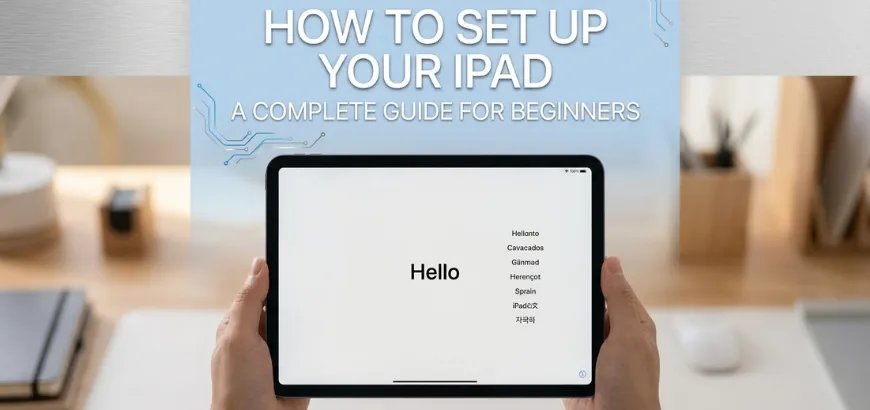
Turn On the iPad
Press and hold the top button until the Apple logo shows up on screen. Once the screen lights up, follow the on-screen prompts to begin. This basic step opens the door to the full setup process covered in our today’s iPad user guide.
Sign In To Your Apple Account
Enter your Apple ID and password when prompted. If you don’t have an Apple account, you can create one directly during setup or visit the iCloud webpage to create one manually. After the initial setup, this step is required to connect your iPad to your apps and iCloud, including an Apple ID for making a purchase.
Transfer Data & Settings From Old Device
Next, you'll see an option to bring over data from an old iPad or iPhone. You can choose what to sync, like photos, apps, and settings, or set up as new instead. This step saves you time if you already own another Apple device.
Connect To The Network
Your iPad will need internet access to finish the start-up setup. Connect to the Wi-Fi or cellular network depending on the iPad variant you have or network preference. This step is a key part of any iPad setup guide, since most of the features we are going to discuss later depend on internet access.
Set Up iCloud & Backup
Turn on iCloud to keep your photos, files, and documents synced across devices. Back up all your settings here to protect your data going forward. This step matters more than people realize when they first set up an iPad.
Note: Skipping this step leaves your device open to anyone who picks it up.
Update To The Latest iPadOS
The last step for now is to check for software updates, and you are done with your iPad start-up setup. Check and install the latest iPadOS version if available. Running the newest software always gives you every new feature and fix that Apple has released. This matters most in our iPad guide for new users, since older software can miss key options.
Personalization
Adjust your display, sounds, and app layout to fit how you work. Many people skip this step, but it leads to some of the most useful iPad settings on the overall device. Take a few minutes here, and your iPad will feel like yours right away.
In the next section, you will find out how the features work differently for iPad users in Bangladesh.
Exciting Features of iPad Every User Should Know
Your iPad packs more power and creativity than you might ever expect. There are so many things you can do with an iPad, from simple taps in your day-to-day to full multitasking. This section from our iPad guide breaks down each standout feature:

Learn Basic iPad Gestures
You can swipe, tap, and pinch to replace most buttons on your iPad. An ideal iPad feature guide starts here, since gestures control almost everything you do.
Home Screen & Dock
Icons on your home screen primarily give you quick access to every app. The Dock sits at the bottom and holds your most-used apps within reach. Compared to other tablets, this layout can feel more organized and personalized.
Multitasking & Split Screen
You can run two apps side by side on one screen on your iPad via Split View, you know? If you are a creator, this can be very interesting for you. Many designers and writers often rely on using iPad’s Stage Manager feature to organize several windows at once.
Apple Pencil Support
On the supported models, an Apple Pencil can turn your iPad into a full sketchpad, graphics tablet, and notebook. Using Apple Pencil effectively, you can draw and quickly take notes during class or meetings.
Tip: Use a flexible PET plastic film with a micro-textured surface for superior Apple Pencil strokes, reduced glossy reflections, and better fingerprint resistance.
External Keyboards & Accessories
When you pair a keyboard case with a folio case and stand with your iPad, it turns into a laptop replacement. You can skip this accessory if you are a casual user, but for students and professionals, using a keyboard case can greatly help with their regular research and documentation needs.
External Display & Storage
Connect your iPad to an external monitor, and your screen space instantly doubles. Talking about the external devices, connecting portable SSD drives also lets you store more files and back up projects.
AirDrop For File Sharing
AirDrop is an Apple service that helps in moving photos, videos, and documents between devices in your Apple ecosystem in seconds. No cables or apps get in the way.
Screen Recording
Swipe down from the top corner of your iPad, then tap the record button for screen recording. Taking a screenshot works the same way for capturing exactly what's on your display.
Family Sharing
Setting up an iPad for children becomes simple once you turn on Family Sharing. Parental controls let you limit content by age and app type. So this is the place where you'll find the option to set up the iPad for your child.
Siri Voice Assistant
You can conveniently ask Siri to set reminders, open apps, or answer quick questions. These voice commands can significantly save you time when your hands are full.
App Store
Explore the App Store to find new apps, games, and tools to install on your new iPad. You can choose from about 29 top-level categories and 2.59 million apps that the App Store currently offers for different needs. So now you know how much value an iPad price in Bangladesh actually offers its users.
Essential iPad Tips to Get The Most Out of Your Device
Knowing your iPad's features means little without knowing how to use them well beyond daily tasks. Maybe you're not sure which settings to enable or disable. This iPad beginner guide suggests simple tips that boost performance and battery life.

Extend Your iPad's Battery Life
Battery health matters more once you rely on your iPad every day. You can turn off background app refresh and lower your screen brightness to improve your iPad battery life.
Set Up Your iPad for Studying
Studying gets simpler when your iPad manages PDFs and study files in one place. Adding a stylus pen lets you conveniently highlight notes and diagrams by hand. For most students, it comes impressively close for detailed diagrams. Still, can the iPad replace a professional drawing tablet? Check Star Tech’s other detailed blog on it.
Tip: Follow an Apple Pencil guide to learn about pressure sensitivity and how to tilt-shade quickly.
Set Up Your iPad for Office Work
If you plan to use your iPad for office work, you can make your workflow smoother by managing email, documents, and cloud files properly. Besides, turning on Stage Manager keeps windows organized during client meetings.
Strengthen Your iPad's Privacy & Security
Our iPad basic user guide strongly recommends often reviewing app permissions. Accordingly, these small changes also make the iPad best for seniors who want fewer surprises.
Manage Local & Cloud Storage
Storage runs out fast once your iPad starts filling up with photos and videos. A Type-C hub can add extra room for larger files. AirDrop also helps you move photos to an iPad without cables.
Keep Your iPad Software Up to Date
Apple Inc. regularly fixes bugs and adds new features to its iPad lineup with its software updates. Our iPad how-to guide recommends checking for iPadOS updates at least once a month. Regular software updates can improve performance right after each update.
Add Widgets to Your Home Screen
Widgets place useful information right on your home screen. The Spotlight search also helps you find any widget or app in seconds. Suppose, placing a social media widget can keep updates visible without opening the app itself.
Keep Your iPad in Good Condition
Last but not least, keep your iPad in good condition. That basically refers to regular maintenance. Clean the screen often and store your device safely while traveling.
This tutorial wraps up our iPad usage guide with one last reminder: small habits matter most. Hence, these iPad tips and tricks are worth remembering long after setup.
Common iPad Problems & How to Fix Them (Basic iPad Troubleshooting)
Even with the best habits from the last section and the best iPads in Bangladesh, every device runs into problems sometimes. Nothing to worry about, because Star Tech’s latest iPad guide of 2026 also covers the most common issues you can fix by yourself before calling in any professional help.
Force Restart During Sudden Freezes
Hold the top button and volume button together until the Apple logo appears. This basic step, found in every iPad manual, fixes most sudden freezes.
Fix Wi-Fi or Bluetooth Connection Issues
Wi-Fi or cellular data problems often trace back to a simple network glitch. Turning airplane mode on and off usually resolves the issue within seconds.
Speed Up a Slow or Unresponsive iPad
Too many open apps can obviously slow your iPad down over time. However, closing unused apps and restarting your device usually restores normal speed.
Fix Apps That Keep Crashing or Freezing
An app on your iPad that freezes repeatedly often needs a fresh reinstall. Deleting and redownloading it clears out corrupted files causing the crash.
Free Up Space When Storage Is Full
Your iPad slows down noticeably once storage runs low. Free up storage by deleting old photos, videos, and unused apps. Practically, storage fills up faster than most people expect.
Recover Your iPad If You Forget Your Passcode
Suppose somehow you forgot your iPad's passcode; what will you do now? Just connect your iPad to a computer, then follow the on-screen recovery steps.
Reset Your iPad Without Losing Data
Backing up first lets you safely reset without losing data on your iPad. iCloud or a computer backup keeps your files, photos, and settings safe.
Fix an iPad That Won't Charge
A worn-out cable or dirty charging port often causes this problem. Clean the port gently, then try a different cable and adapter. Also, checking the battery health by opening Settings reveals if the battery itself needs attention.
Fix a Failed iPadOS Update
An update that won't install usually needs more free space or a stronger connection. Restart by pressing the sleep button first, then try the update again.
Report the Problem to Apple
Sometimes nothing on this list solves the problem. Apple's Feedback app lets you report bugs directly to their team. This final step, ending our complete iPad user guide, connects you with real support when self-fixes run out.
Whether you're managing Zoom sessions, note-taking, or everyday tasks on your device, these iPad instruction guides from Star Tech experts will hopefully cover all the fixes you might need most.
Ready to Get Started?
From setup to daily use, this iPad complete beginner's guide shows you how to set up your iPad step by step, covering features, settings, and fixes along the way.
If you're still deciding which model fits your needs, check out the top 5 best iPads in Bangladesh from 8-inch to 13-inch, along with accessories like the Apple Pencil, keyboard, and mouse mentioned in this setup guide in Bangladesh. You can visit the Star Tech online shop, Bangladesh's most trusted computer shop. They sell almost every iPad model at competitive prices.
Frequently Asked Questions (FAQS)
How to complete an iPad setup?
Power on the device and sign in with your Apple ID. Choose to transfer old data or start fresh. Join a network, enable iCloud, add Face ID or Touch ID, then install the newest iPadOS. This iPad user guide for iPadOS 26 breaks down every stage.
What are the troubleshooting steps for an iPad?
Try a force restart when the screen freezes. Toggle Wi-Fi off and back on for connection trouble. Close unused apps to fix lag, and clear space if storage runs out. Retry the update if iPadOS won't install.
What are some tips for setting up an iPad?
Disable background app refresh to stretch battery life. Check privacy permissions right away. Set automatic iCloud backups, and look for updates monthly. These small habits keep performance steady long-term.
What can I do with an iPad?
Take notes, draw with Apple Pencil, and run two apps side by side. Stream shows, join calls, and edit documents on the go. Students, creatives, and remote professionals all lean on these tools daily.
How to use Apple Pencil with an iPad?
Ans: Pair it over Bluetooth, then write or sketch straight on the screen. Most apps read pressure and tilt without extra setup. It suits note-taking, sketching, and marking up PDFs equally well.
How to connect a keyboard to an iPad?
Ans: Open Bluetooth settings, then set the keyboard to pairing mode. Tap its name once it shows on your iPad. Smart Connector keyboard cases skip this step and pair on their own.
What should I do if I forgot my iPad passcode?
Ans: Link your iPad to a computer, then follow the recovery prompts on screen. Without a recent backup, this process may wipe your data. A quick look at a tablet buying guide beforehand helps you understand backup options for your specific model.

Comments
There are no comments for this Article.